
How to set up multi-factor authentication
An employee enters the correct password, but the person trying to log in is not the employee. This is exactly the type of incident multi-factor authentication is supposed to prevent. The question of how to set up multi-factor authentication is therefore not just about technical configuration. It is about reducing the likelihood of payment fraud, data leaks, access lockouts, and costly operational downtime.
Passwords will remain part of most logins, but they alone do not provide sufficient protection. They can be leaked in a cyberattack, reused across services, or become accessible after phishing. With multi-factor authentication, the user must prove their identity with more than one factor. A thief who has the password would then also need to gain access to a device, security key, or confirmation that they do not own.
What multi-factor authentication protects – and what it doesn’t
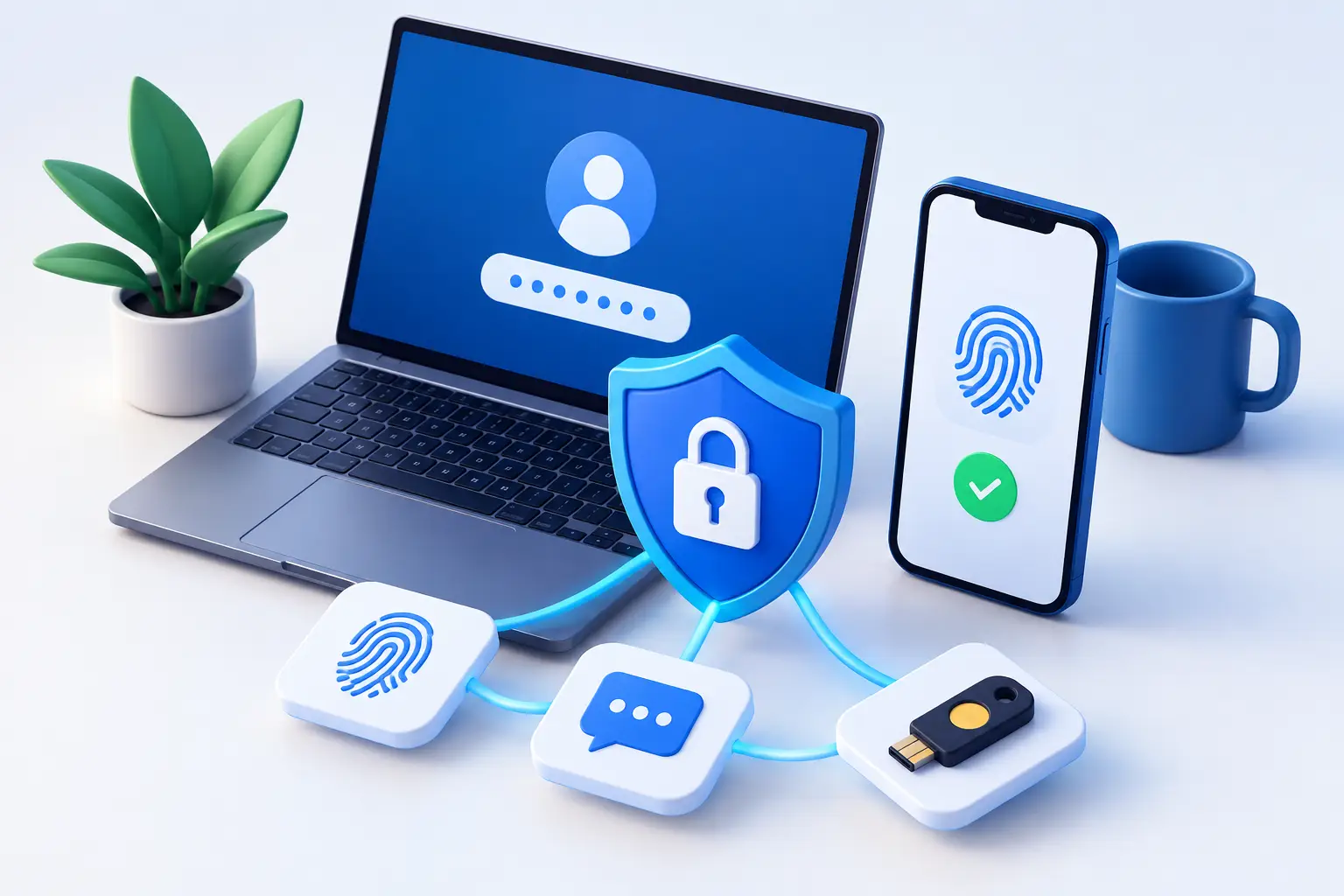
Multi-factor authentication, often called MFA, is usually based on a combination of something the user knows, has, or is. A password is what the user knows. A verification app on a phone, a security key, or biometric data on a device are examples of another factor.
Companies should first protect access points that can have the greatest impact on operations. This includes email, Microsoft 365 or similar collaboration systems, remote access, accounting systems, cloud storage, password vaults, administrator access, and all systems that store sensitive information. Email should be a particular priority, as it is often the recovery route for other user accounts.
MFA does not stop all attacks, however. An employee can still be tricked into approving a login request, handing over information on the phone, or sending a payment after a convincing fake email. Therefore, MFA needs to be paired with good passwords, password managers, email protection, updated computers, and clear procedures. This is a layer of security, not an excuse to skip other layers.
How to set up multi-factor authentication in a company
A good implementation starts with an overview, not by sending automated messages to all employees. Map out which systems are in use, who has administrative rights, and which access points could halt operations or cause damage if they fell into the wrong hands. Also, check older service accounts, shared mailboxes, and former employee access. These are often forgotten until something goes wrong.
Start with administrators and sensitive access
Administrator accounts should be the first to get MFA. Someone who can create new users, change payment information, view security settings, or delete data can cause significant damage in a short time. This also applies to external IT providers, finance departments, and employees who work with personal data or confidential information.
The next step is to set up MFA for all regular users in key systems. The most successful approach is often a phased rollout: first administrators and tech teams, then finance and other high-risk roles, and finally all staff. This allows technical issues and instructions to be refined before the change affects the entire company.
Choose a verification method based on risk
Not all MFA methods are equally strong. SMS messages are better than nothing, but phone numbers can be hijacked and messages can be delayed. Authenticator apps, where the user approves a request or enters a time-sensitive code, are generally more secure and suitable for most employees.
Security keys are a stronger option for administrators and employees with access to highly sensitive systems. They can also reduce the risk of phishing sites, as the key verifies that the login is happening on the correct website. The cost is higher and backup keys need to be managed, but for key roles, it can be a sensible investment.
To keep operations simple, each user must register at least two secure recovery methods. This could be an authenticator app on a work phone and a backup code stored securely, or a primary security key and a secondary backup key. Do not make an administrator's personal phone number the single emergency fallback for the entire company.
Set rules that fit the actual workday
Overly strict or poorly designed rules sometimes lead staff to find workarounds. If an employee has to verify themselves every few minutes, despite working on a managed and updated workstation, security quickly becomes a nuisance. If the rules are too weak, however, MFA becomes merely a formality.
The right balance depends on the environment. An employee in an office with a managed laptop might need fewer re-authentications than an employee logging in from a new device, an unfamiliar network, or a different country. Access to accounting or administrative systems should also be treated more strictly than access to general information.
Conditional access policies can help with this. They can require stronger authentication when risk signals appear, for example, when a new device is used or a login appears to come from an unusual location. Such rules must be tested carefully. A misconfigured rule can block legitimate access when staff need it most.
The human element is decisive
The technical setup often takes less time than changing work habits. Staff need to understand why they are receiving a verification request and when they should never approve it. A simple rule works well: only approve a request that you yourself initiated at this moment. An unexpected request is a signal to stop, not to press approve to get rid of the notification.
Particular attention must be paid to protecting against so-called 'consent fatigue'. An attacker who has a password can send repeated login requests, hoping that a user will mistakenly approve one of them. Number matching, where the user must enter a visible number into the authenticator app, can reduce this risk. The same applies to short, regular training materials that link security to the real-life situations of staff.
Clear processes for a lost phone, a new phone, and an employee who cannot log in are equally important. If access recovery is unclear, people will find insecure solutions under pressure. Decide who can reset MFA, how identity is verified before doing so, and how the incident is logged. This protects both the employee and the company.
Test, monitor, and grant exceptions
Before MFA becomes a requirement for everyone, the process must be tested with a small group. Test logging in from a computer, phone, and outside the company network. Test what happens when a phone is lost, when an employee changes devices, and when an administrator needs emergency access. Also test service accounts, older applications, and devices that cannot use modern login.
Exceptions should be rare, temporary, and logged. Unprotected administrator access because it is 'special' often becomes the weakest link. If a technical system does not support MFA, it must be assessed whether it can be isolated, have its privileges restricted, have its access monitored specifically, or be replaced. This may cost time and money, but the cost must be compared to the risk associated with unprotected access.
After implementation, login attempts, failed authentications, and changes to recovery information must be monitored. This information can indicate an attack before it becomes an operational problem. Regular review also ensures that employees who leave do not retain access and that new employees are set up correctly from day one.
Multi-factor authentication should not become another system the company has to worry about. When planned with the right methods, good user support, and monitoring, it becomes a simple defence in daily operations. If there is uncertainty about where to start, it is sensible to begin with email and administrator access, confirm the process with a small group, and then build up the protection without disrupting the workday more than necessary.